

TL;DR
Directors and business owners now have to verify their identity with Companies House, and it's free using the GOV.UK One Login app. You'll need your smartphone and an original photo ID (biometric passport, UK photo driving licence, BRP or frontier worker permit, no photocopies). The app walks you through photographing the ID, scanning its chip, taking a selfie and confirming your address. At the end you get a personal code, keep it safe, because it's needed for your future Companies House filings.
Companies House has introduced new rules meaning directors and business owners now need to verify their identity. It sounds like a massive administrative headache, but thankfully, using the GOV.UK One Login mobile app makes the process pretty quick and painless.
Best of all? It is completely free. Here is how to get it sorted in seven simple steps.
What You Need Before You Start
Grab these two things before you begin:
- Your smartphone.
- The original version of one of these IDs:
- Biometric passport (from any country)
- UK photo driving licence (full or provisional)
- UK biometric residence permit or card
- UK frontier worker permit
(Note: HMRC are strict on this. You cannot use a photocopy or a picture of the ID on your phone. It has to be the physical document).
Kudos to eCommerce Accountants for this handy video!
Step 1: Get Your Account Sorted
Head over to the GOV.UK website and create or sign in to your GOV.UK One Login account. Scroll down and click the green “verify your identity” button.
You will be asked a few basic questions to figure out the easiest way for you to verify. For most people, this will be via the mobile app.
Step 2: Download the App
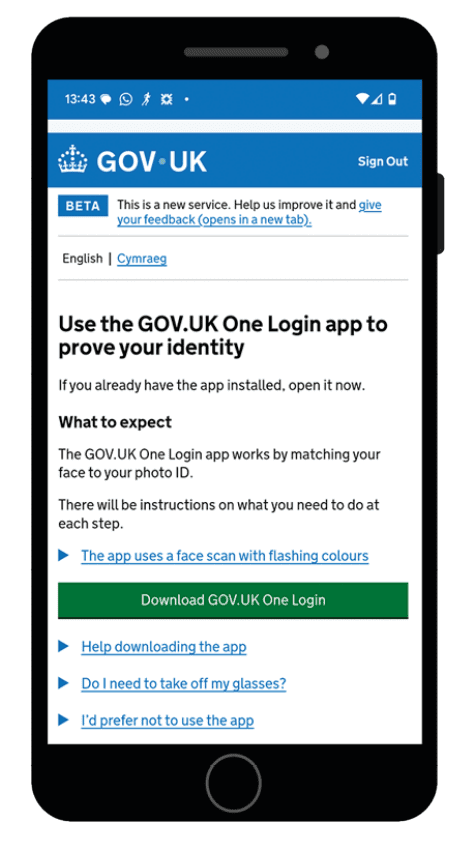
You will be prompted to download the GOV.UK One Login app to your smartphone. Once it is downloaded, log in using your account details.
(Don’t worry about it cluttering up your phone—you can delete the app as soon as this process is finished).
Step 3: Snap a Photo of Your ID
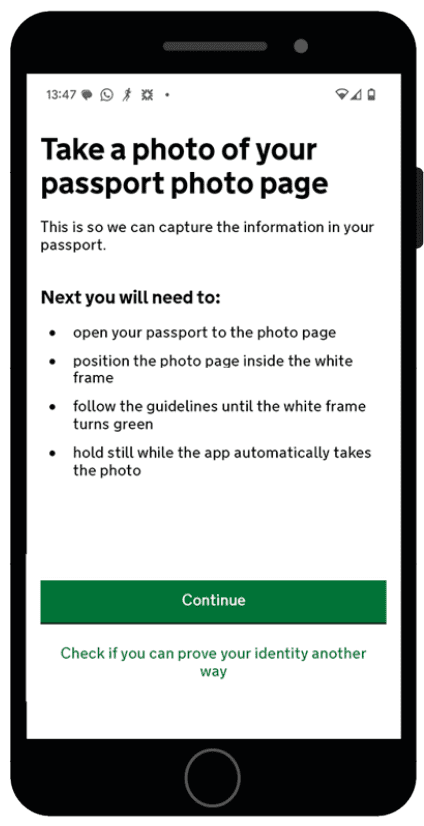
Follow the on screen instructions and use the app to take a clear photo of your identity document, such as the photo page of your passport.
Step 4: Scan the Chip
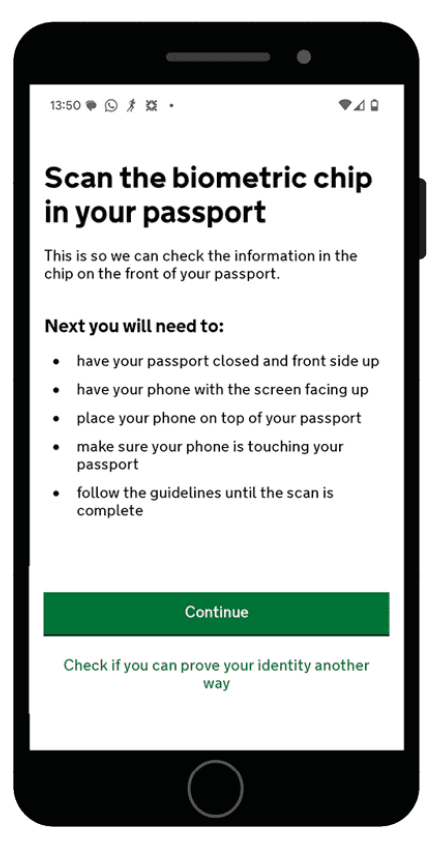
Next, you will be asked to scan the biometric chip on your ID. If you are using a passport, this chip is usually hidden inside the front cover. The app will show you exactly how to hold your phone against the document so it can read the chip.
Step 5: Time for a Selfie
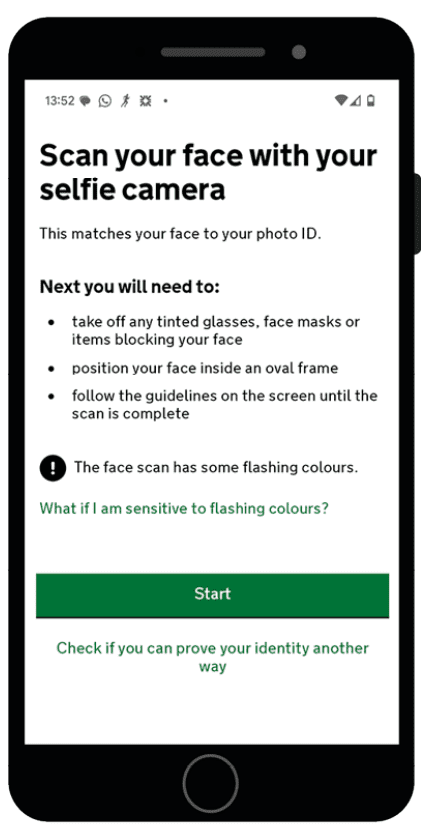
The app will now ask you to do a quick face scan using your phone’s front facing camera. Just follow the guidelines on the screen to position your face correctly so it can match you to your ID.
Step 6: Confirm Your Address
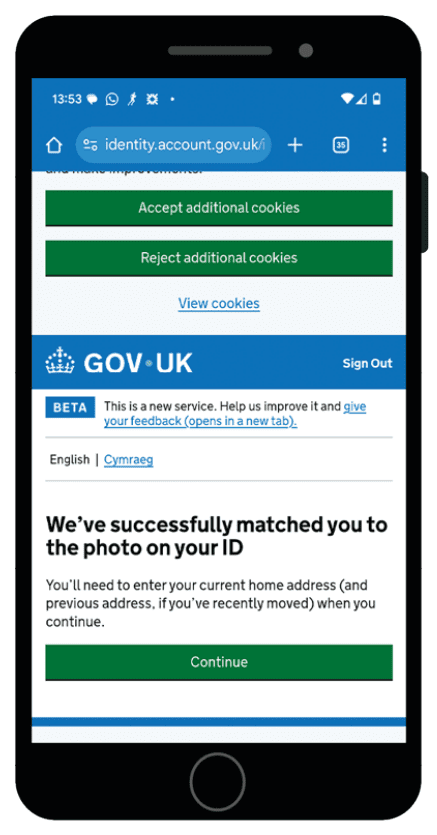
Once the app has successfully matched your beautiful face to your ID photo, you will be asked to enter your current home address. If you have moved recently, you might need to drop your previous address in there too.
Step 7: Save Your Personal Code
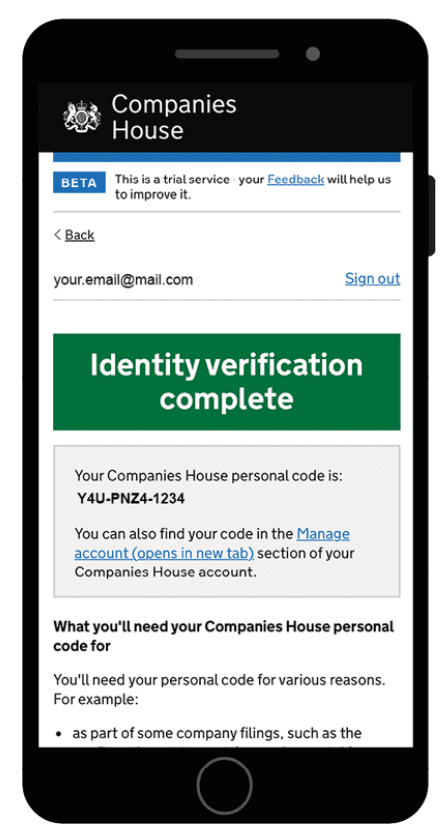
You are all done! Once the verification is complete, you will be given a personal code on your GOV.UK One Login dashboard.
This code is vital for your future Companies House filings. Keep it safe and only share it with people you completely trust to handle your business administration—like us, when we are filing on your behalf.
Stuck?
Technology can be glitchy. If you hit a wall or the app is not playing ball, just drop us a message. We will help you get it over the line. HMRC also has a dedicated support section on their site which various ways to reach out.